
Quick start
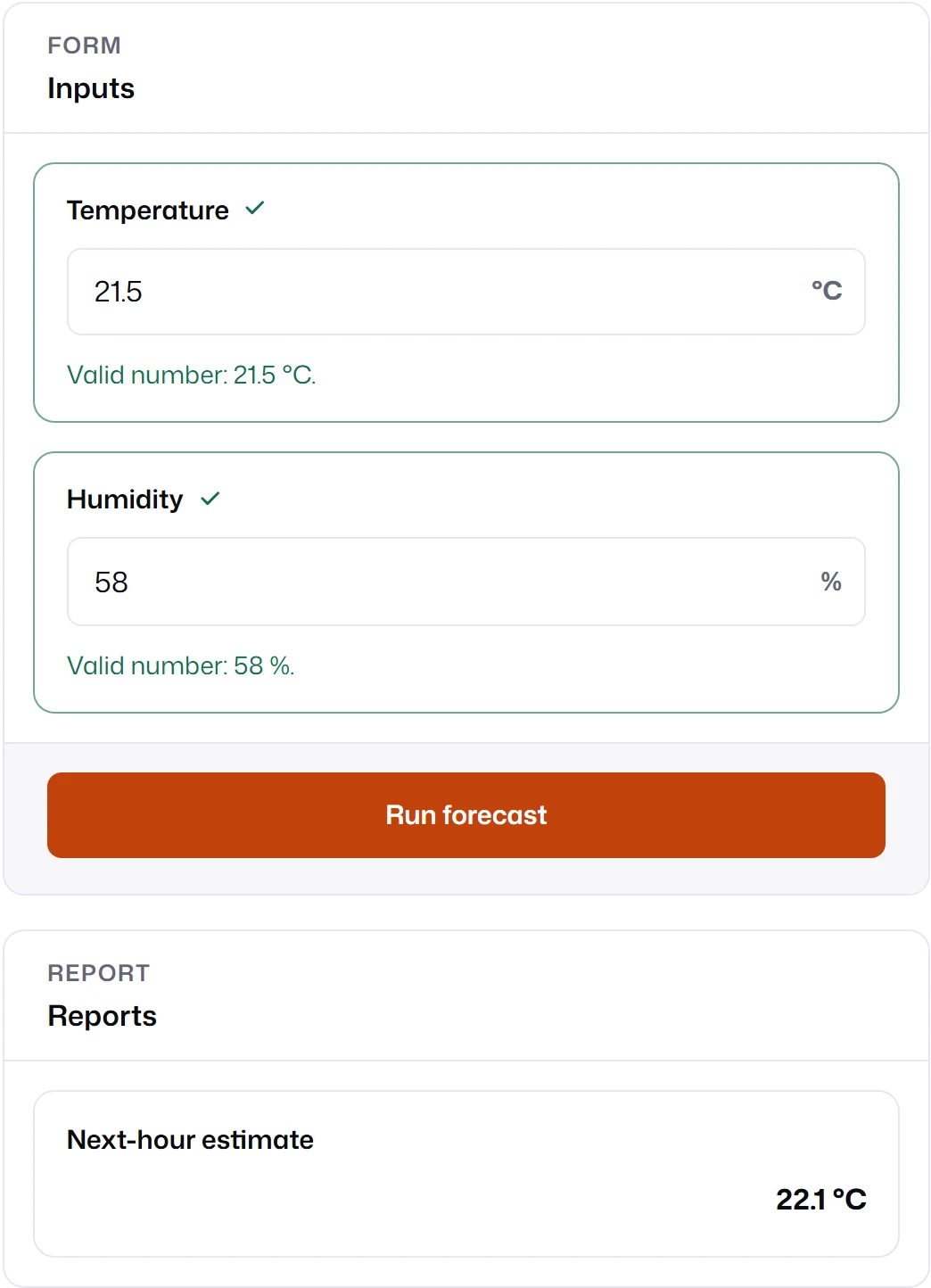
This page builds the form below: two validated inputs and one model report. It runs without a server, so you can paste it into any Vite, Astro, or plain ES module page.
-
Add an empty container to your page. MLForm refuses to mount into an element that already has content unless you ask it to replace that content.
<div id="forecast-form"></div> -
Mount the form. The schema declares the inputs and the report; the transport is where submitted values go.
forecast-form.ts import { mountForm } from "mlform";import type { Transport } from "mlform/transport";// A stand-in for your model. A real transport calls your backend and returns the same shape.const transport: Transport = {async submit(request) {const temperature = Number(request.modelValues.temperature);const humidity = Number(request.modelValues.humidity);const estimate = temperature + (humidity > 70 ? -0.4 : 0.6);return {reports: [{ backend: "default", mappedTo: "forecast", status: "ready", payload: { value: estimate } },],};},};const container = document.querySelector<HTMLElement>("#forecast-form");if (!container) throw new Error("Missing #forecast-form container.");const mounted = mountForm(container, {schema: {fields: [{id: "temperature",kind: "number",label: "Temperature",unit: "°C",min: -40,max: 60,defaultValue: 21.5,required: true,mappedTo: "temperature",},{id: "humidity",kind: "number",label: "Humidity",unit: "%",min: 0,max: 100,defaultValue: 58,required: true,mappedTo: "humidity",},],reports: [{id: "forecast",kind: "regressor",label: "Next-hour estimate",unit: "°C",precision: 1,mappedTo: "forecast",},],},transport,labels: { submit: "Run forecast" },});// Unmount when the page or component that owns the container goes away.export const dispose = () => mounted.unmount(); -
Press Run forecast. MLForm validates both fields, calls
transport.submitwith the values, and renders theforecastreport from the envelope the transport returns.
What each part does
Section titled “What each part does”idnames the field or report inside MLForm. Layouts, errors, andform.getField()use it.mappedTonames the value for the model. The transport receivesrequest.modelValuesas{ temperature: 21.5, humidity: 58 }. A field withoutmappedTosends nothing to the model. Mental model explains why these are separate.min,max,requiredare checked before the transport runs. Invalid values never reach it.- The report envelope
{ backend, mappedTo, status, payload }tells MLForm which report the result belongs to.backend: "default"is the name used when you submit without naming a backend. The report withmappedTo: "forecast"receivespayload, and the regressor renders itsvaluewith the configured unit and precision.
Connect your backend
Section titled “Connect your backend”Replace the stand-in transport with a request to your service. Pass request.signal so MLForm can
cancel a stale request, and throw on failure so the form shows the error.
import type { Transport } from "mlform/transport";
export const transport: Transport = {  async submit(request) {    const response = await fetch("/api/forecast", {      method: "POST",      headers: { "content-type": "application/json" },      body: JSON.stringify({ inputs: request.modelValues }),      signal: request.signal,    });    if (!response.ok) throw new Error(`Forecast failed with status ${response.status}.`);    return response.json();  },};
First backend implements /api/forecast in Express and FastAPI.
- Field kinds shows the twelve built-in inputs.
- Layouts arranges fields in sections, columns, steps, or tabs.
- Frameworks mounts and unmounts the form from React, Vue, Angular, or Astro.