
Layouts
The schema says what a form means; the layout says where each part appears. A layout is a separate
layout option on mountForm or createFormView, so the same fields, validation, and submission
work in any arrangement, and the same layout object works with the built-in UI or your own.
All captures on this page use one schema: temperature, humidity, a sensor location, and two
reports. Only layout changes.
Four layouts
Section titled “Four layouts”kind |
Navigation | Use it when |
|---|---|---|
"stacked" (default) |
One page. | People compare fields or the form is short. |
"split" |
One page, reports beside the inputs. | Results are central and the screen is wide. |
"wizard" |
Steps; Next validates the current step. | A linear task where later steps depend on earlier answers. |
"tabs" |
Free switching between tabs. | People jump between independent groups. |
Stacked
Section titled “Stacked”With no layout, MLForm places every field in schema order, then every report. Add children to
arrange them yourself.
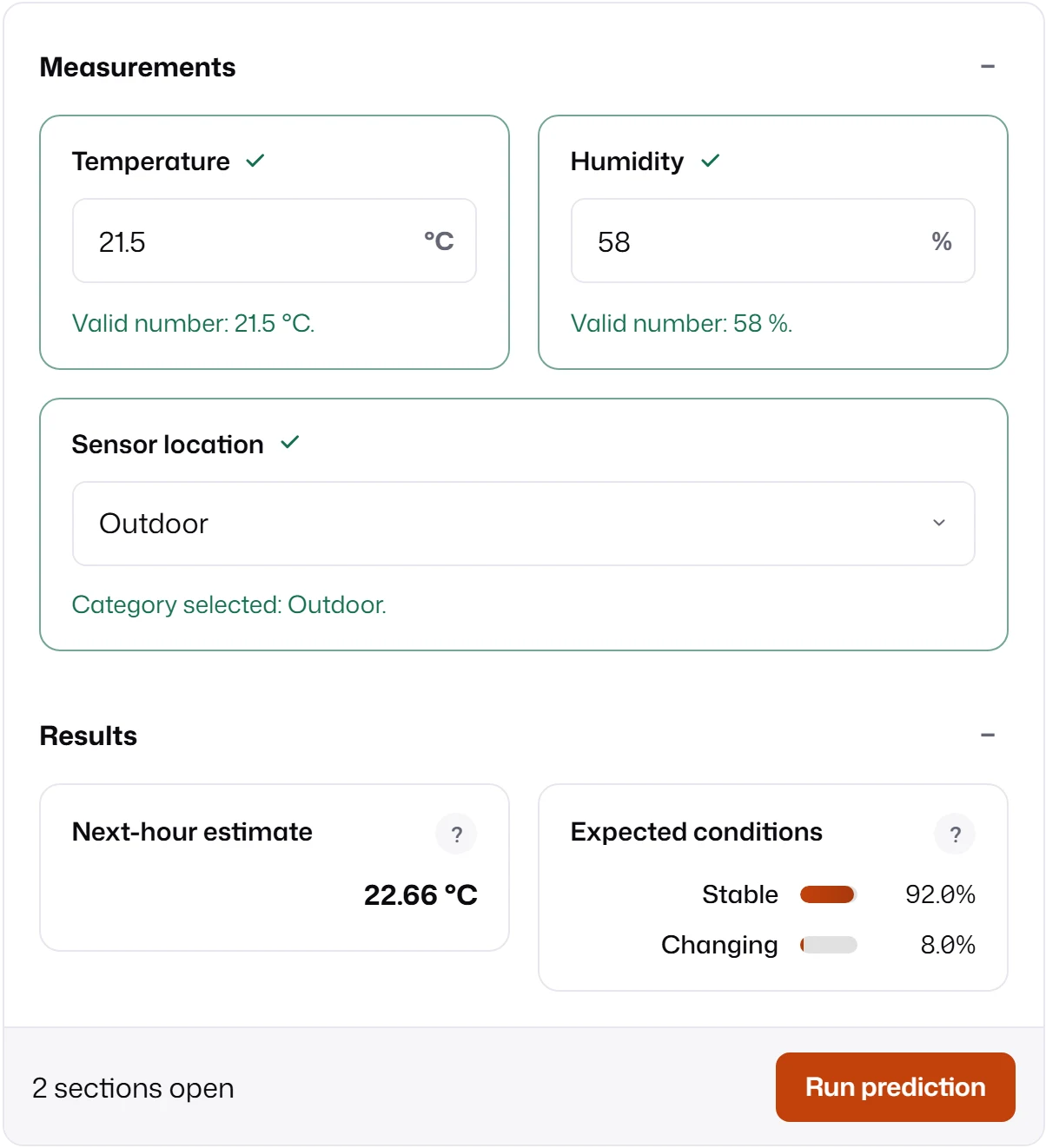
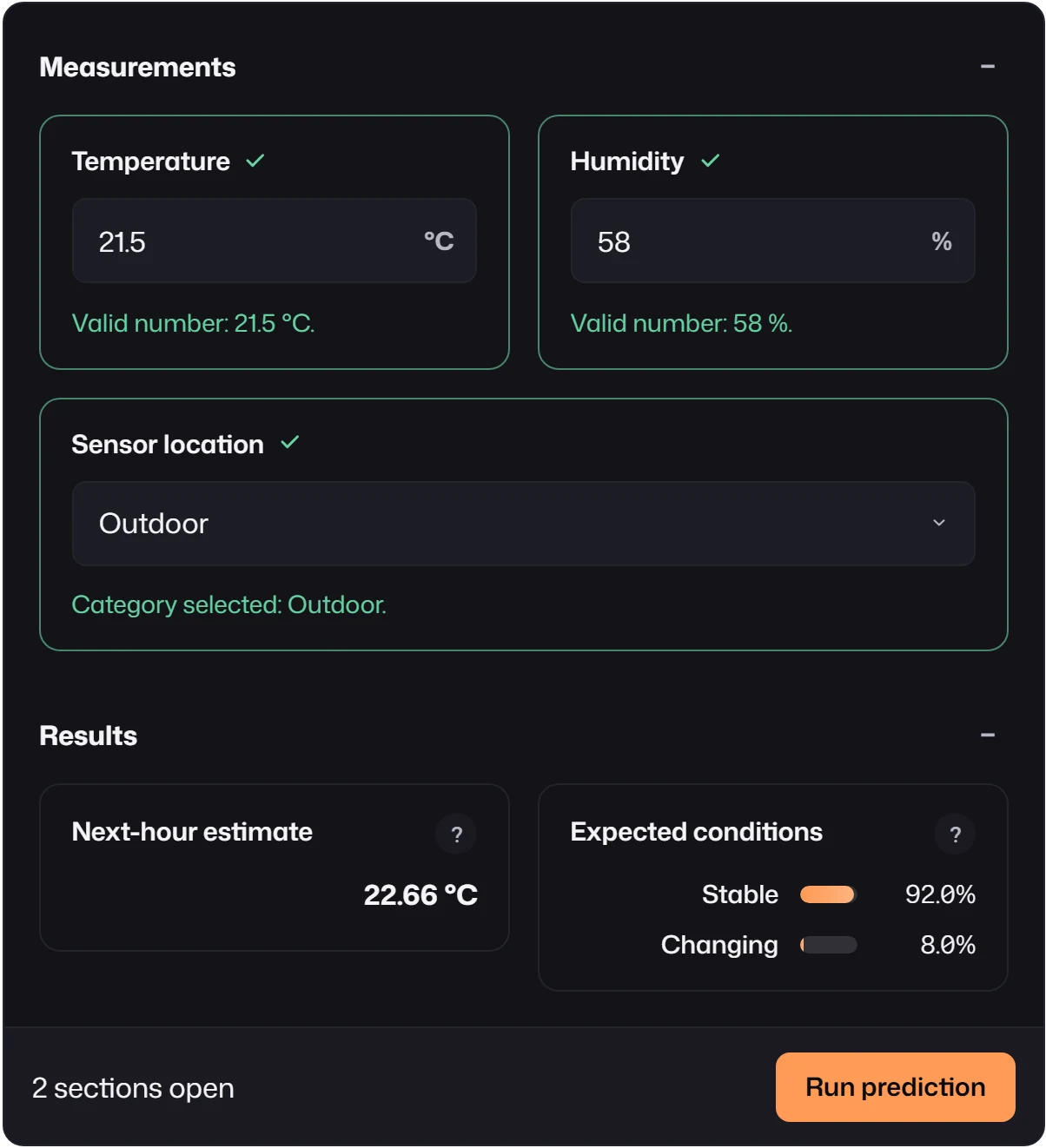
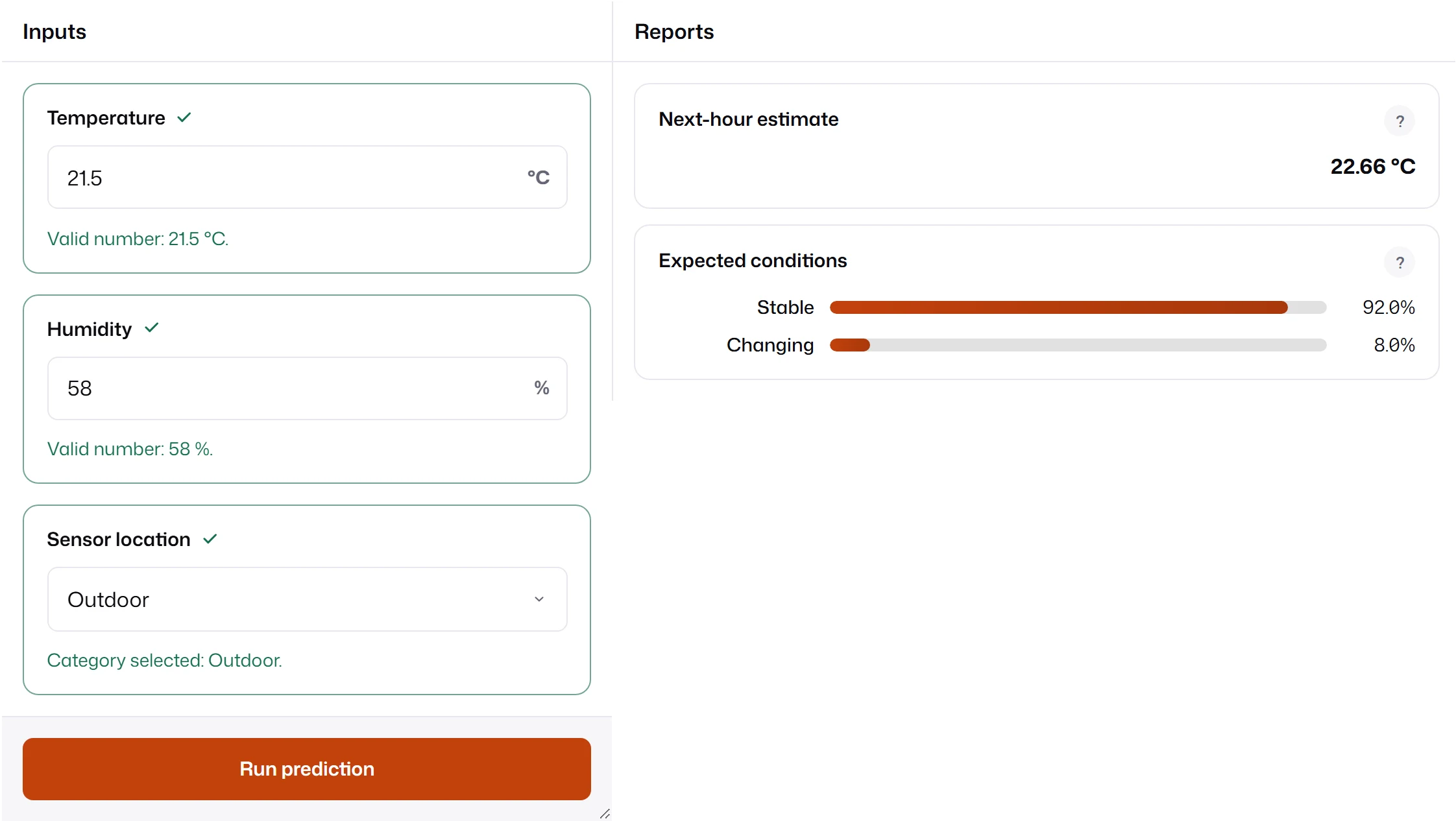
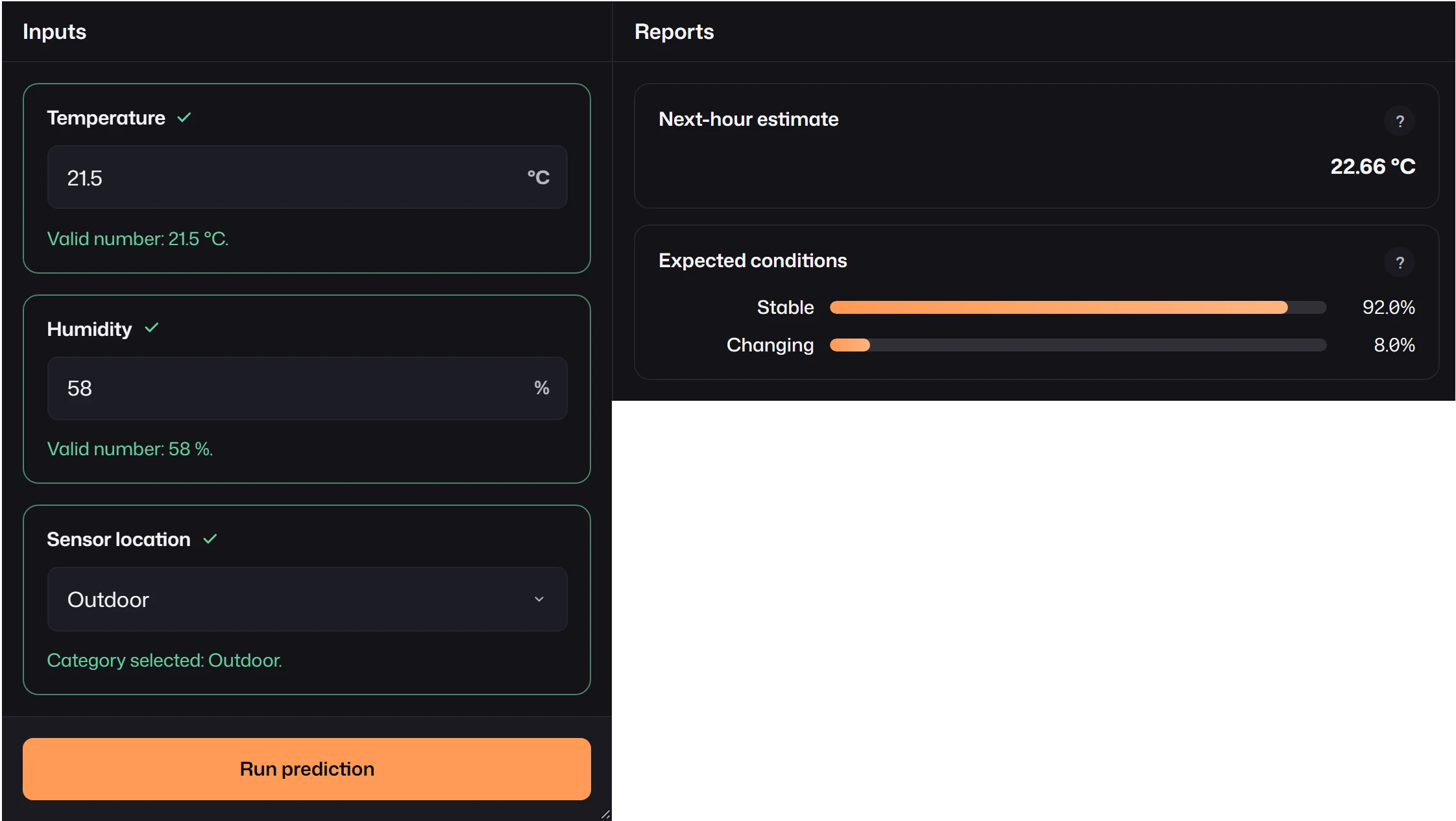
layout: { kind: "stacked", children: [ { kind: "section", title: "Measurements", children: [ { kind: "group", columns: 2, children: [ { kind: "field", field: "temperature" }, { kind: "field", field: "humidity" }, ], }, { kind: "field", field: "location" }, ], }, { kind: "section", title: "Results", children: [ { kind: "group", columns: 2, children: [ { kind: "report", report: "forecast" }, { kind: "report", report: "condition" }, ], }, ], }, ],}"split" without children puts inputs and reports in two columns that stack on narrow form containers.
With children, it renders the nodes you give it, like "stacked".
layout: { kind: "split" }Wizard
Section titled “Wizard”Each step has a title and children. Next validates only the current step’s fields and stays
put if any are invalid. Previous never validates. Submission is available on the last step.
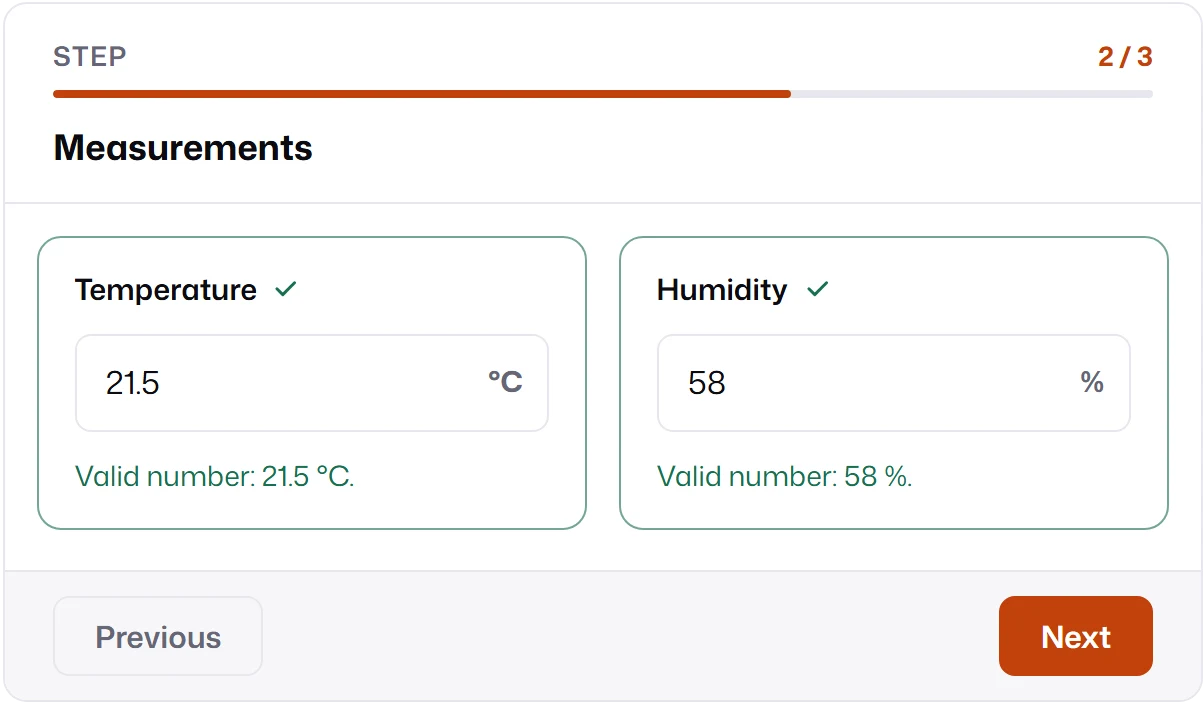
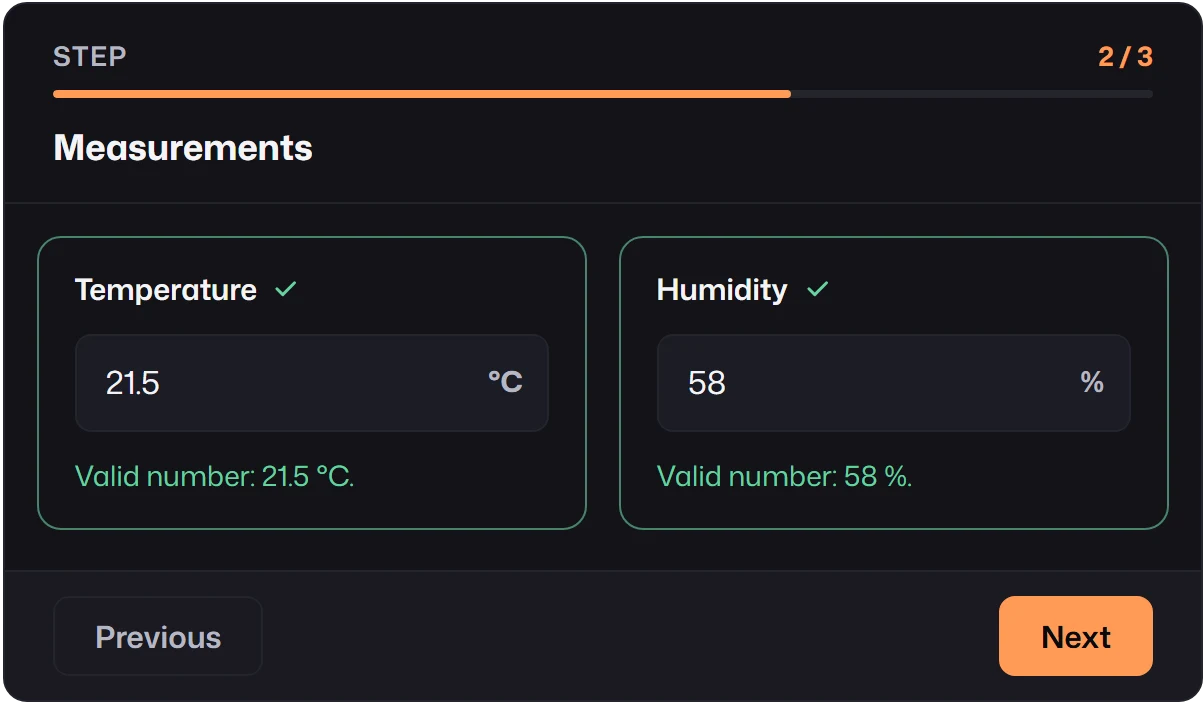
layout: { kind: "wizard", steps: [ { id: "location", title: "Location", children: [{ kind: "field", field: "location" }], }, { id: "measurements", title: "Measurements", children: [ { kind: "group", columns: 2, children: [ { kind: "field", field: "temperature" }, { kind: "field", field: "humidity" }, ], }, ], }, { id: "results", title: "Results", children: [ { kind: "group", columns: 2, children: [ { kind: "report", report: "forecast" }, { kind: "report", report: "condition" }, ], }, ], }, ],}When a step is invalid, its errors appear in place:
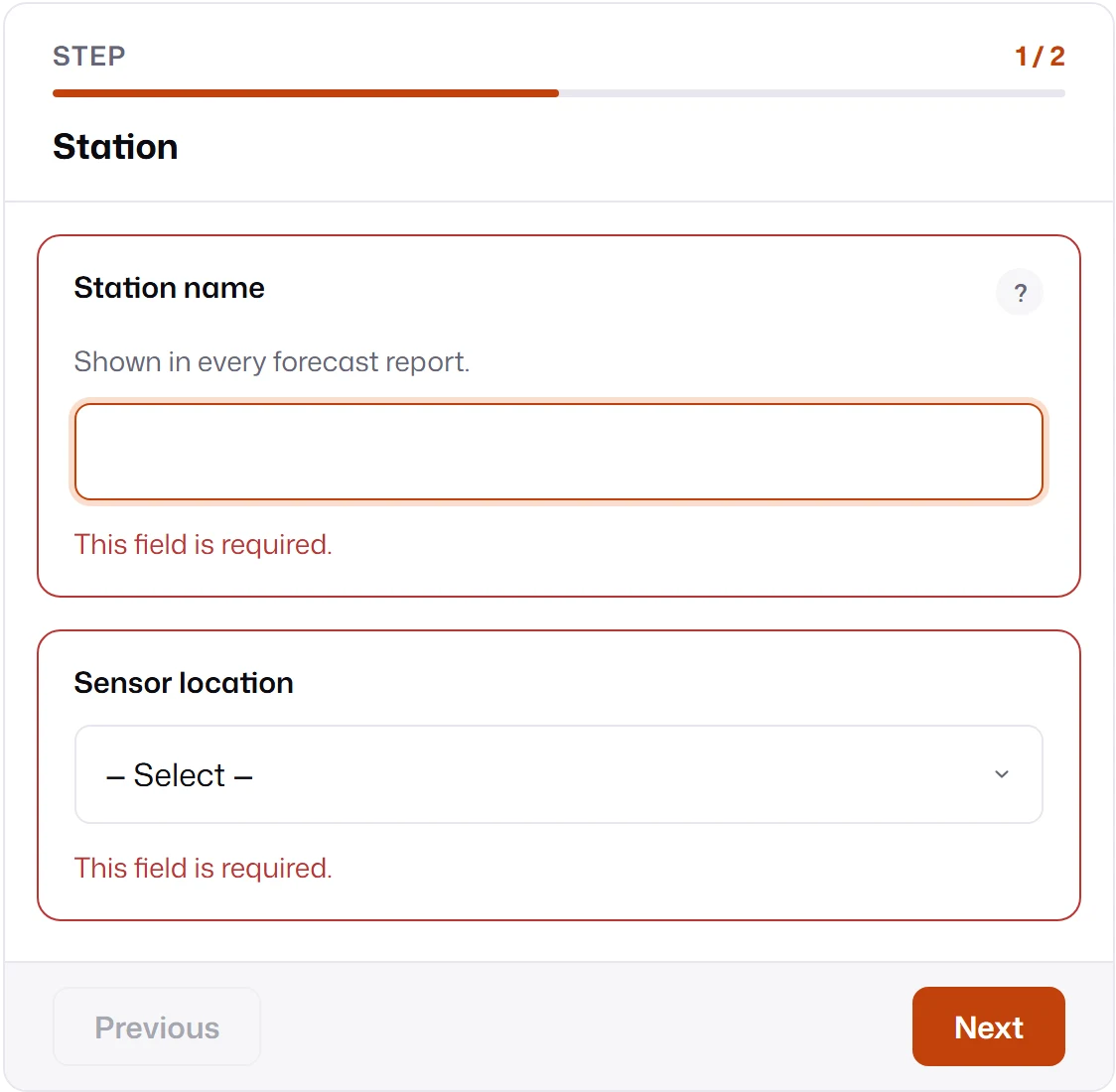
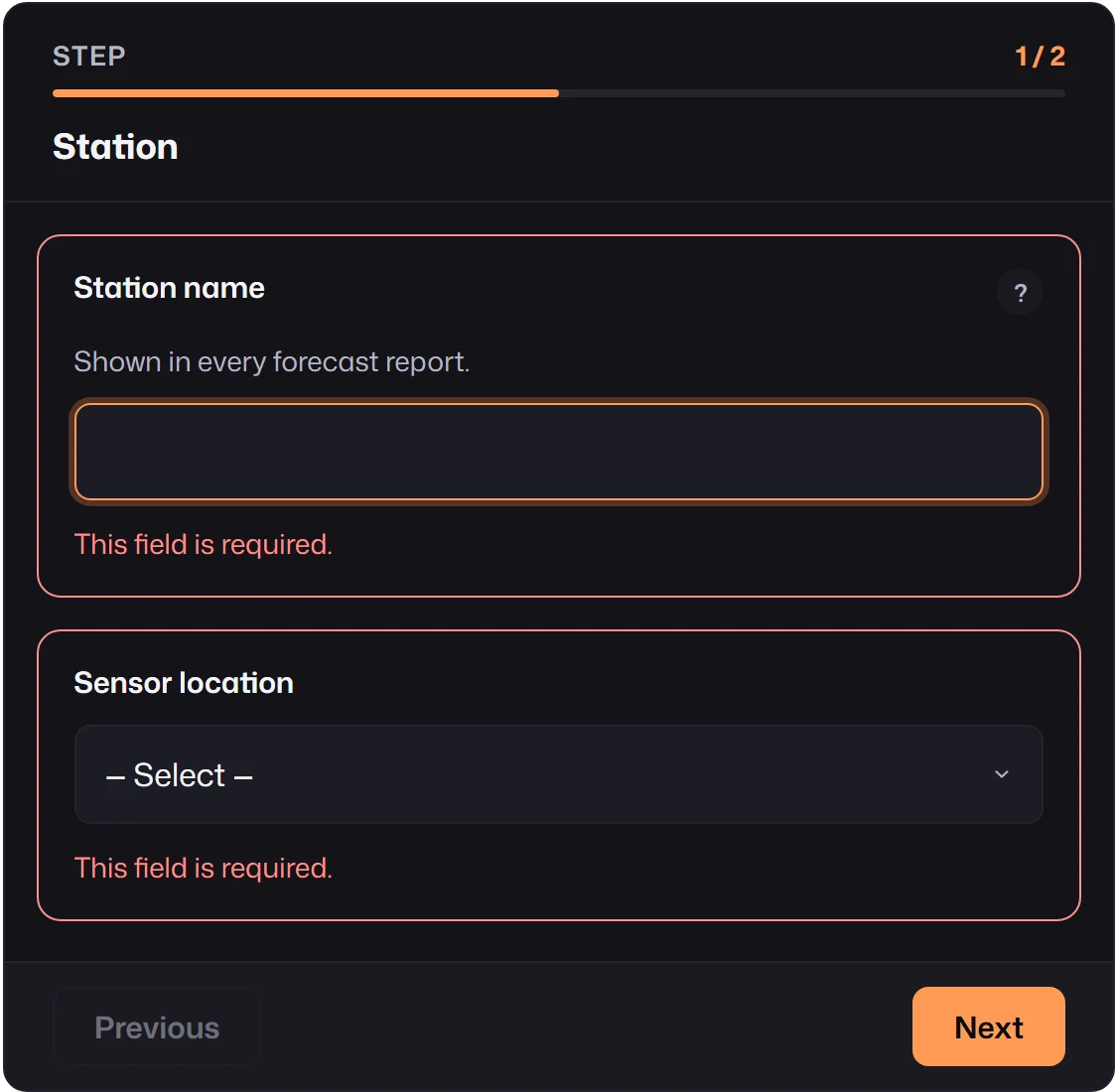
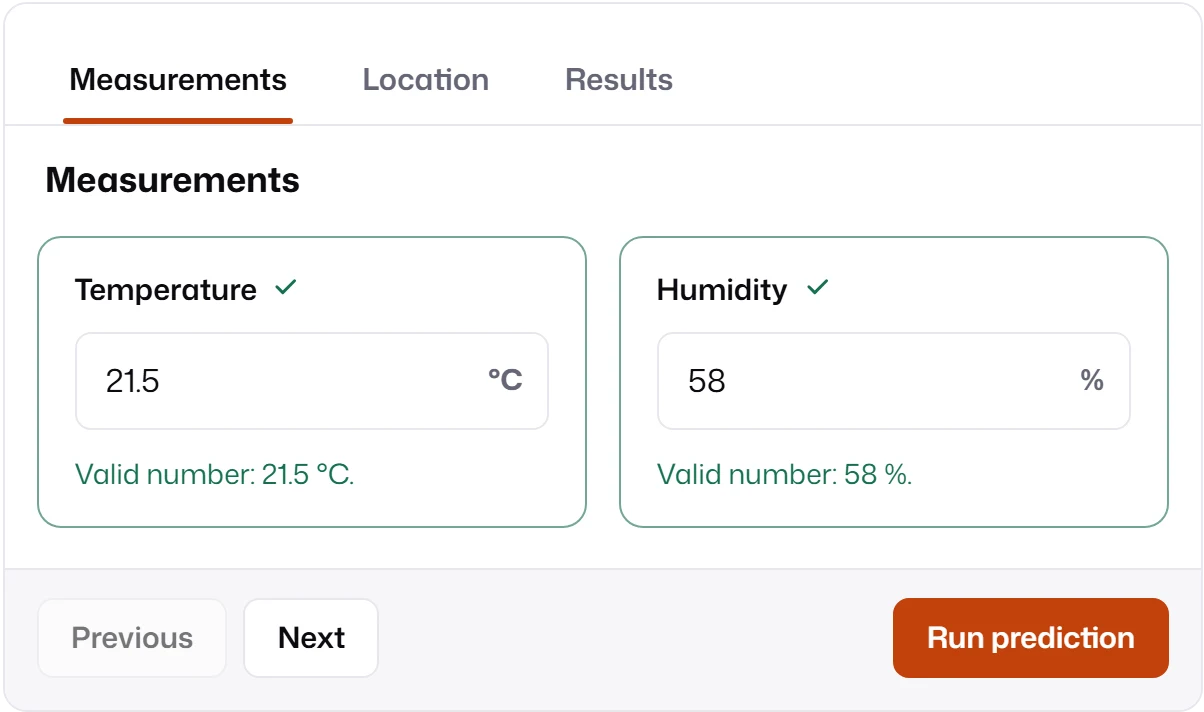
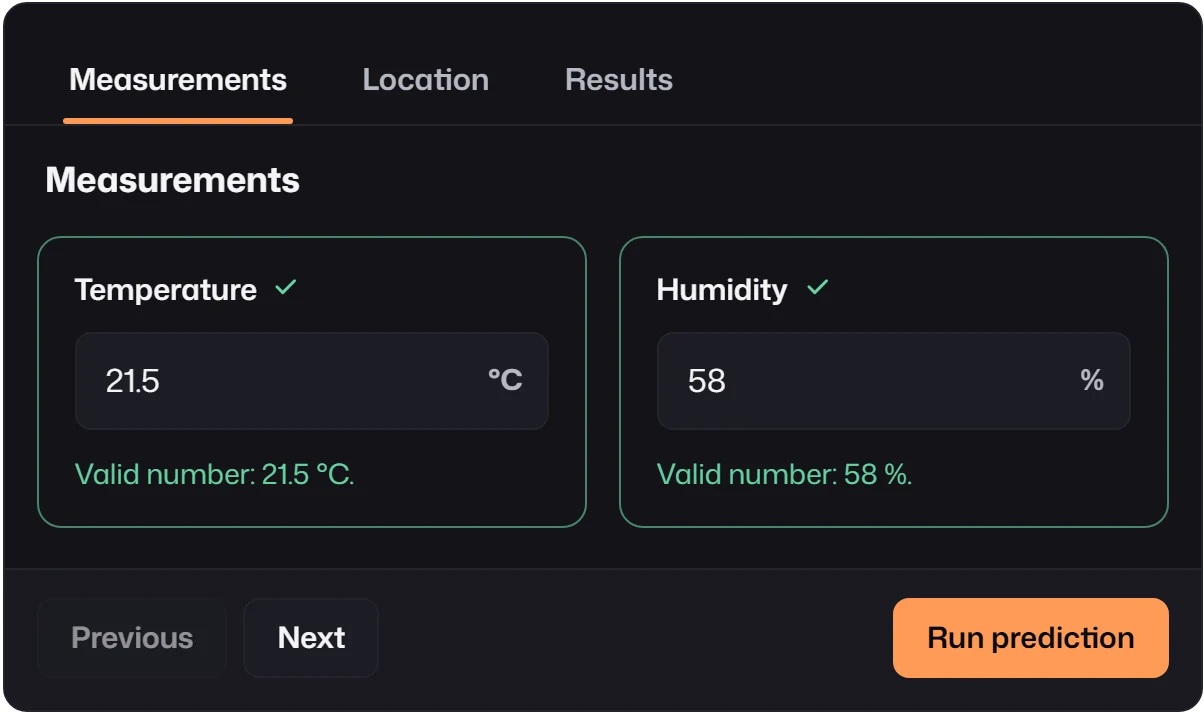
Tabs share the wizard’s shape (tabs instead of steps) but never validate when switching.
Submission is available from every tab; invalid fields in other tabs are revealed on submit.
layout: { kind: "tabs", tabs: [ { id: "measurements", title: "Measurements", children: [ { kind: "group", columns: 2, children: [ { kind: "field", field: "temperature" }, { kind: "field", field: "humidity" }, ], }, ], }, { id: "location", title: "Location", children: [{ kind: "field", field: "location" }], }, { id: "results", title: "Results", children: [ { kind: "group", columns: 2, children: [ { kind: "report", report: "forecast" }, { kind: "report", report: "condition" }, ], }, ], }, ],}Sections and groups
Section titled “Sections and groups”Inside any layout, two nodes organize fields without changing their meaning:
sectionhas atitle, an optionaldescription, and a toggle. Sections start open; setdefaultOpen: falseto start collapsed. The footer counts open sections.grouparranges its children incolumns: 1,2, or3, with no title and no toggle. Groups collapse to one column when the form container is 900 px wide or less.
Sections and groups nest in each other and inside steps and tabs. A field inside nested sections is visible only while every enclosing section is open.
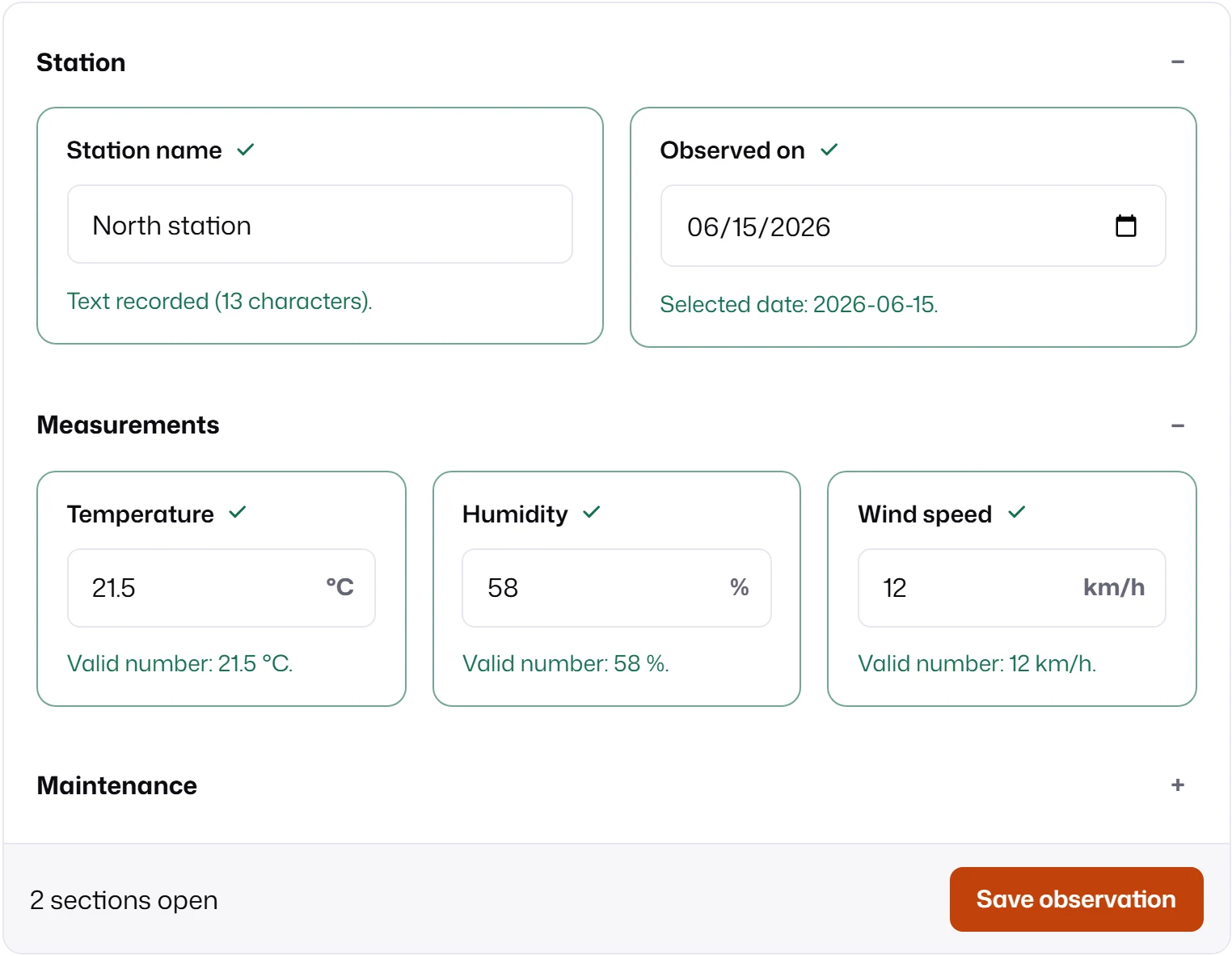
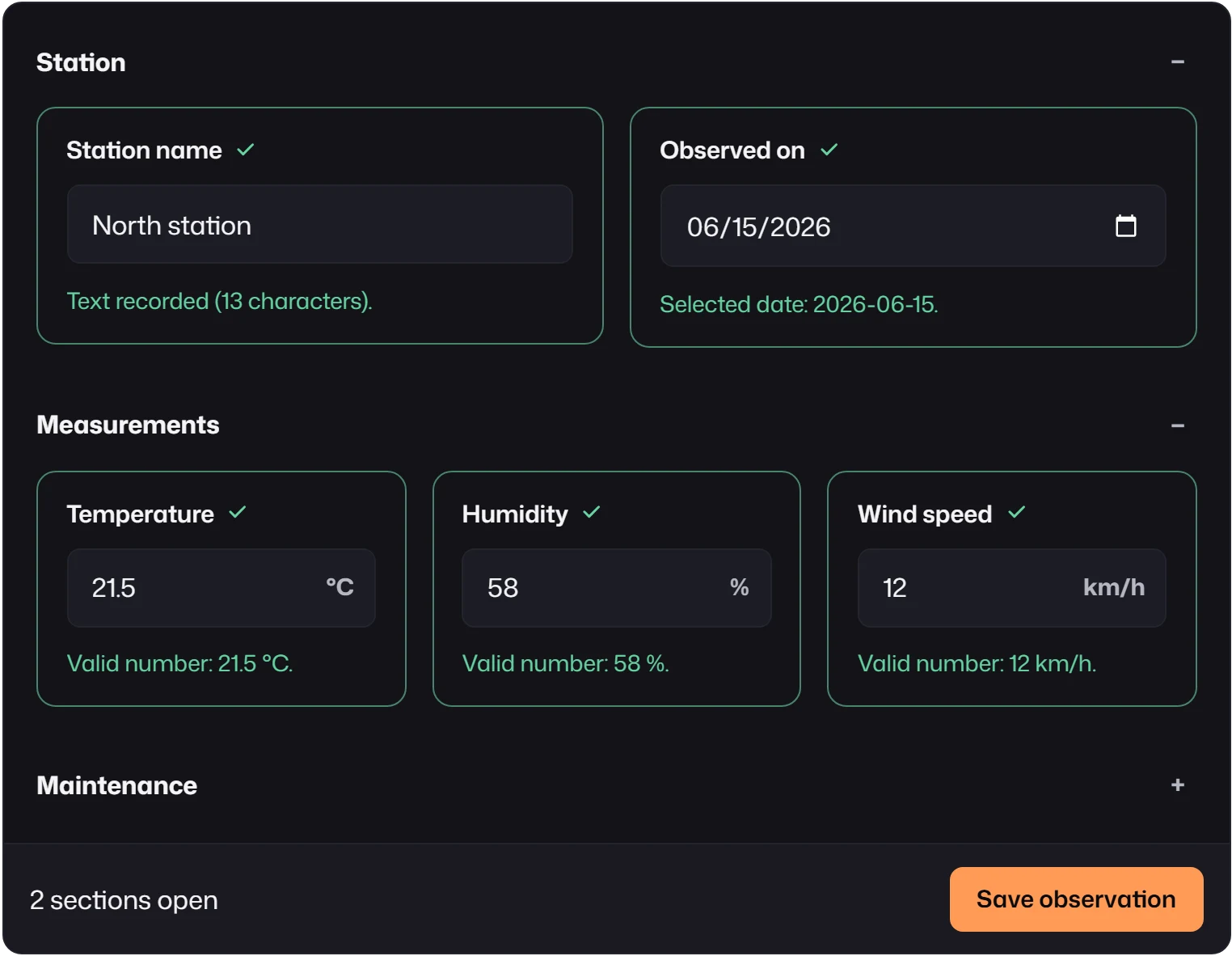
layout: { kind: "stacked", children: [ { kind: "section", title: "Station", children: [ { kind: "group", columns: 2, children: [ { kind: "field", field: "station" }, { kind: "field", field: "observed" }, ], }, ], }, { kind: "section", title: "Measurements", children: [ { kind: "group", columns: 3, children: [ { kind: "field", field: "temperature" }, { kind: "field", field: "humidity" }, { kind: "field", field: "wind" }, ], }, ], }, { kind: "section", title: "Maintenance", defaultOpen: false, children: [ { kind: "field", field: "notes" }, { kind: "field", field: "calibrated" }, ], }, ],}Opening or closing a section never validates. When mounted.submit() finds an invalid field in a
closed section, step, or tab, it opens that container and focuses the field.
The layout tree
Section titled “The layout tree”| Node | Shape | Notes |
|---|---|---|
| field | { kind: "field", field: id } |
Every field appears exactly once, directly or in a custom node. |
| report | { kind: "report", report: id } |
Each report appears at most once; omitted reports are not shown. |
| group | { kind: "group", id?, columns?, children } |
columns is 1, 2, or 3; collapses to one when the form container is at most 900 px wide. |
| section | { kind: "section", id?, title, description?, defaultOpen?, children } |
title must not be empty: it names the toggle. |
| custom | { kind: "custom", id, fields } |
A region your code renders. Only with createFormView; mountForm rejects it. |
References use exact runtime ids. An explicit layout that misses a field, places one twice, or names an unknown id fails when the form is created. Layout config lists every error message.
Layout and conditions
Section titled “Layout and conditions”A field is shown only when two independent things allow it:
- its condition state (
field.state.visible), fromhiddenWhenin the schema; - its layout position (
visibleInLayoutin the view), from the active step or tab and open sections.
Use layout to stage work (steps, tabs, collapsed sections) and conditions to remove what does not apply. A collapsed section still submits its fields; a hidden field does not, unless its policy says so.
Built-in or your own markup
Section titled “Built-in or your own markup”Every layout above is also available headless. Pass the same object to createFormView and render
snapshot.layout yourself; navigation, validation gating, and section state come with it. Choose:
mountFormwhen the built-in chrome fits. It renders the tablist, step indicator, section toggles, and a footer with the submit button.createFormViewwhen your product owns the chrome: a sidebar wizard, tabs with badges, a dashboard card. See Headless view, and Built-in controls in your layout to keep MLForm’s field controls.
Layout showcase mounts each layout live, side by side, with the same schema and transport.